Disable federated Copilot connectors
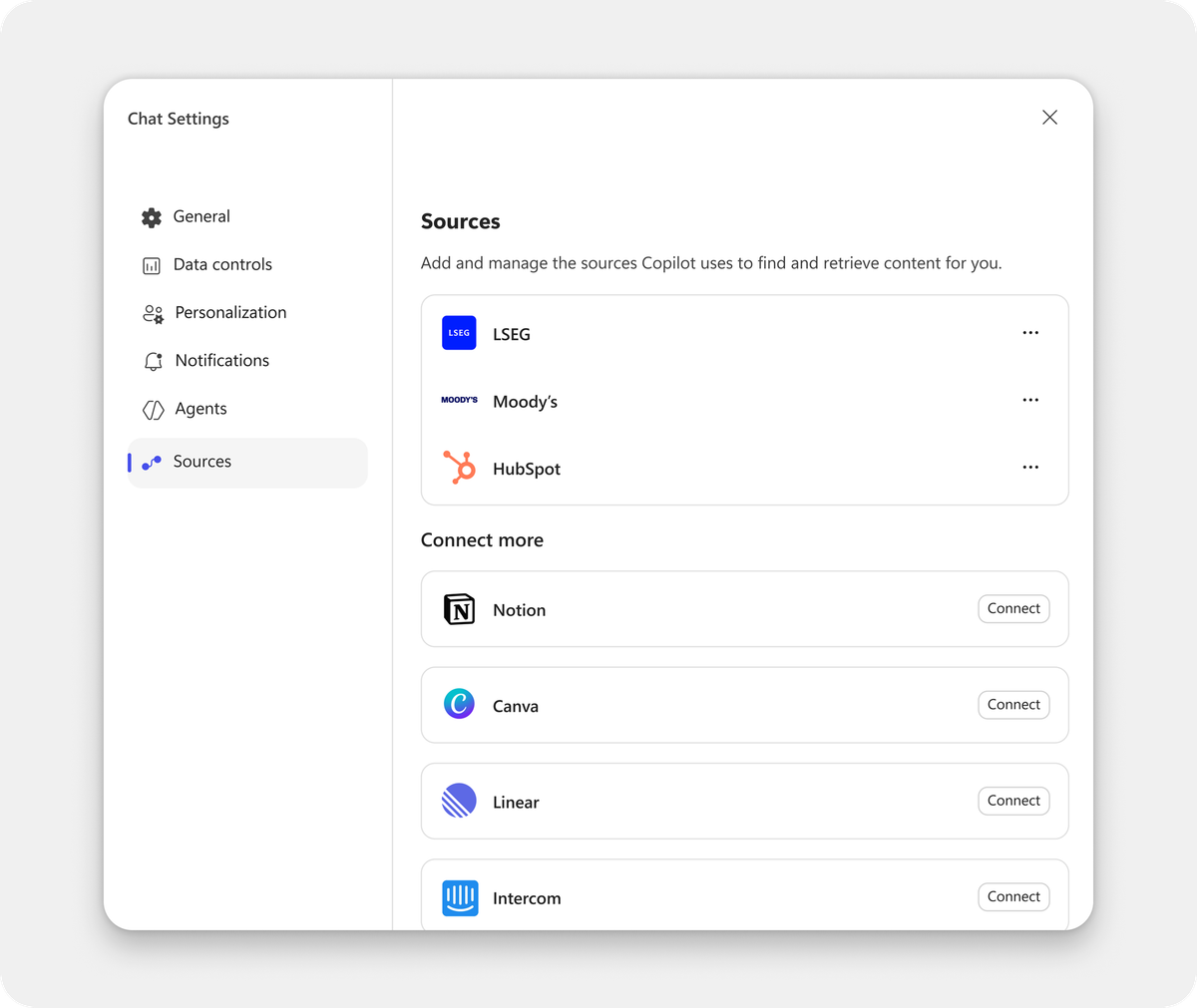
Disabling federated Copilot connectors might be a compliance requirement in your organization, which requires each new connector to be approved before making it available to all users. Manually disabling individual connectors in the Admin center, especially with regularly newly released connectors, is probably not feasible for most organizations. Thankfully, Microsoft introduced a newish central configuration setting to disable all (including newly introduced) federated Copilot connectors by default.
The setting is applied using a new PowerShell Module called Connector.Cmd. In the background the Graph Connector Service (GCS) is used. As per Microsoft Learn documentation, the Entra ID Role AI Administrator is sufficient to configure this setting; however, in my experience, using the AI Admin role results in the following error using the Set-FederatedConnectorToggle cmdlet.
"error": {
"code": "AccessDenied",
"message": "The client doesn\u0027t have permission to perform the action."
}
After connecting to the GCS API directly to check if my roles are applied correctly, I ran into the same permission issue even though the AI Admin role had been applied.
Trying the same configuration using the Global Admin role I was able to configure the settings as described in the docs.
The following steps are required to disable all federated Copilot connectors. Execute these with an active Global Admin role assignment (at least at the time of writing its required.)
Install-Module Connector.Cmd -MinimumVersion 2.1
Import-Module Connector.Cmd

$tenantId = "<Your Tenant ID>"

Set-FederatedConnectorToggle -TenantId $tenantId

# ========================================
# Federated Connector Toggle Manager
# ========================================

# start fetching msal token.
# Requesting for Msal Access token.
# msal token fetched successfully.
# Current State: Federated connectors are ENABLED for your organization


# What would you like to do?
# [1] Disable all connectors (including future connectors)
# [2] Keep enabled by default (disable individually via Admin Center)

# You can manage individual connectors at:
# Microsoft Admin Center -> Connectors -> Connection list

# Select option (1-2): 1

# Updating settings...

# Verifying changes...

# Updated successfully.
# All federated connectors are now DISABLED.
# Users cannot see federated connectors in Copilot.
# Future connectors will be disabled automatically.

# Note:
# Changes may take up to 10 minutes to reflect.
# You may need to refresh the Admin Center to see the updated state.
Executing the Set-FederatedConnectorToggle prompts you to select the desired configuration. To disable all connectors by default enter 1.